
 Xiaohongshu
Where possible, use UCL email addresses when communicating with members, inviting members to events, or adding members to group chats. This helps ensure they are who their email indicates they are, and helps keep anything you might share with them (e.g. information or access) within UCL's account security.
We provide all clubs and societies with an @ucl.ac.uk email account. Every year we add your new president and treasurer so they can send and receive emails on behalf of your group (if you would like to add additional committee members to the mailbox you can do this by sending a full list of names and User IDs to [email protected]).
Please note that you will only be able to access this account following the successful completion of your committee training and registration forms.
How to access your club or society email account
You can find your club/society email address a few different ways:
- Open Outlook and click on 'Address Book', then search for your club/society name.
- Check your club/society webpage, and see if your @ucl.ac.uk email address is listed under your contact details: https://studentsunionucl.org/clubs-societies.
- Check your club/society handover document.
- Email us at [email protected] to find out.
You don't need to log into it separately or require a password. Please ignore/delete any password reset notifications.
To access your club or society account, you will first need to sign into your UCL student email account. Once you have done this, you can access your club or society inbox:
Add a shared mailbox in Outlook 2016 (Desktop)
To add as a shared mailbox (recommended):
Follow https://www.ucl.ac.uk/isd/how-to/open-shared-mailbox-outlook-2016-for-windows
To add as a separate account:
1. In Outlook, click on 'File'
2. Click on 'Account Settings'
3. Click on 'Account Settings' in the drop-down menu
4. In the 'Account Settings' window, click on 'New'
5. Enter your name and the email address of the role account only (ignore the rest) and click on next
6. You will then be prompted to enter a username/password. Enter your details here ([email protected]) and be sure to click on 'Remember My Credentials'. You may need to change it from the e-mail address of the shared mailbox to yours by clicking 'Sign in with different credentials' or similar.
Once you have been authenticated, you will need to restart Outlook for the change to take effect.
Add a shared mailbox in OWA / Office365 (Browser)
1. Sign into your account via the UCL website with Office 365
2. From the left navigation panel click Folders > More and right click on your name.
3. Select Add shared folder...
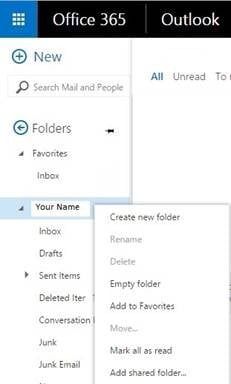
4. Type the shared mailbox name or email address and select Add.
You should now be able to view the shared mailbox on the left-hand side of the navigation panel. In order to view the inbox after logging in, you will first need to click on Folders>More in the left-hand navigation pane.
Accessing shared mailbox on your phone
You can access your mailbox via the following URL, replacing the e-mail address with the one for your shared mailbox:
https:// outlook.office.com/owa/ EMAILHERE @ucl.ac.uk
Please use the link above without additional spaces, i.e. https://outlook.office.com/owa/[email protected].
Alternatively, you can add the shared mailbox in OWA / Office 365 (above) to make it available through your browser on your phone.
Access Issues
If you've followed all the steps above, but the shared club/society inbox still doesn't show up, it is likely that you haven't been granted access to the inbox yet. You may also see an error message saying 'You don't have permission to perform this action.'
It's a manual process for us to add new presidents and treasurers (and to remove old ones), so please do bear with us! If you don't have mailbox access a month after your annual registration has been approved, please contact [email protected].
Group chats
Any participants of society/club-related group chats should hold an active membership to your group. A taster membership is the minimum requirement to participate in club/society-related group chats, to ensure those participating in your group's activity, both in-person and online, are registered with the Union.
Group chat admins should be vigilant in cross-referencing group chat members with their membership list before allowing them to join. Group chats should not be instantly accessible via a link or code – an identity check should always take place to ensure bots and scammers are not inadvertently admitted.
Admins should be actively reviewing group chat messages, deleting any scam messages or fraudulent activity, and removing group chat members who perpetrate these.
Please see this article from UCL on increased scam reports:
Don't fall for fraud: Be scam aware | UCL News - UCL – University College London
Consent to being in groups
For many platforms, it's important you don't add people to a group if they haven't consented to it.
For example, adding a club/society member to a Whatsapp group without asking them makes their basic contact information available to other group members, including their phone number, which they may not want.
Instead, send them a link via their UCL e-mail address with the details on how to sign up, so they can make the choice themselves.
Group chats should, ideally, be deleted and recreated annually, to ensure active and recent consent from all participants. If this is not feasible, groups should ask all group chat members to re-consent to their inclusion at least once per year.
Staying safe on Zoom and Microsoft Teams
There are a number of features that you can enable to make your meetings more secure and safe, which can be set right at the start when you schedule your meeting.
- Automatically generate a meeting ID
- Enable a meeting password
- Enable waiting room
- Lock the meeting once all attendees have joined
- Don't share your meeting link on social media
For video meetings, all UCL students have free access through their UCL accounts to:
- Microsoft Teams - https://www.ucl.ac.uk/isd/services/communicate-collaborate/microsoft-teams
- Zoom - https://www.ucl.ac.uk/isd/services/communicate-collaborate/zoom (recommended if any of your participants are based in China)
Other software should be used only if you can be confident the platform uses personal data responsibly. To work this out, find the data protection or privacy policy the software uses to make sure they don't sell user data for marketing purposes, and use personal data only for the purpose of the software. If there are any uses outside of what a participant might expect, let them know of this before they join.
Data protection
Students' Union UCL has its own Data protection and privacy policy but is also subject to UCL's policies - see Understanding Data Protection at UCL.
Club and society members are entitled to best practice data protection - their details should be private, secure, and used only for the purposes they have consented to (or for legitimate reasons related to these purposes).
This means clubs and societies need to:
- ensure that they handle personal data about their members (and any other people) in line with the data protection principles;
- be able to recognise and respond to requests from members and others exercising their individual rights under the Data Protection & GDPR.
We encourage all student leaders to complete UCL provided GDPR training, to ensure you are aware of the principles of data protection as applied to UCL.
For more information, please see our guide on GDPR for clubs and societies.